Knowledge Banks
How to add files to a Knowledge Bank
Uploading a file is the quickest way to teach the bot something. Your document is read, cut into Knowledge entries, and made searchable, usually within a minute.
Updated October 4, 2026. Applies to the BotableX Staff Portal. For tenant admins.
Uploading a file is the quickest way to teach the bot something. Your document is read, cut into Knowledge entries, and made searchable, usually within a minute.
This article shows how to upload, which file types work, and how to tell when a file is ready.
Before you start
- You need the Knowledge permission (
knowledge.manage). - You need a Knowledge Bank to put the files in.
- Each file must be no larger than 50 MB.
Which files work
You can upload PDF, DOCX, XLSX, PPTX, HTML, MD, TXT, CSV, JSON, and images (PNG, JPG, GIF, WEBP).
Anything else is skipped, with a message telling you which file and why.
So how do you add a file?
- In the menu on the left, click Knowledge Banks and open your bank.
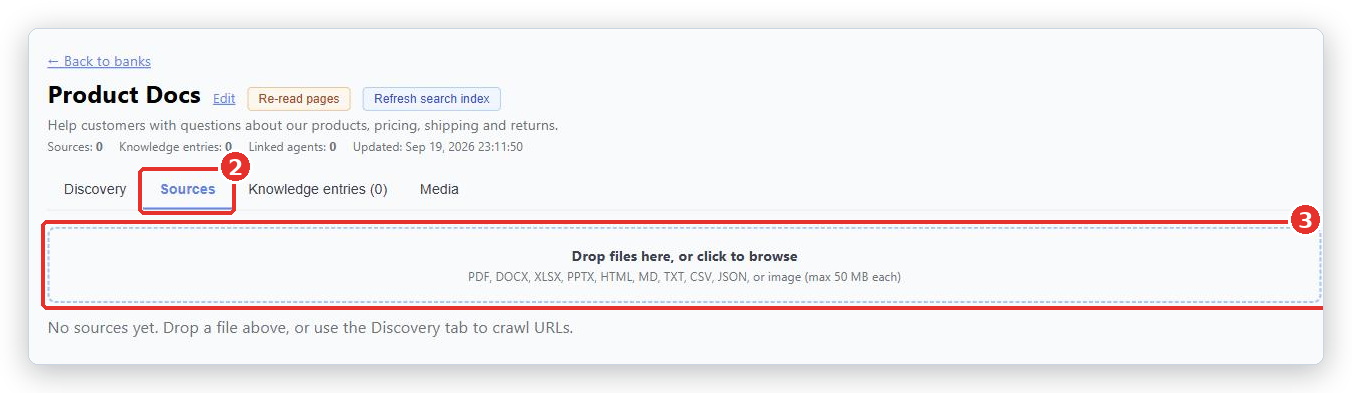
- Click the Sources tab.
- Drag your files onto the box that says Drop files here, or click to browse, or click the box and pick them.
- Wait. The box says Uploading… while it works.
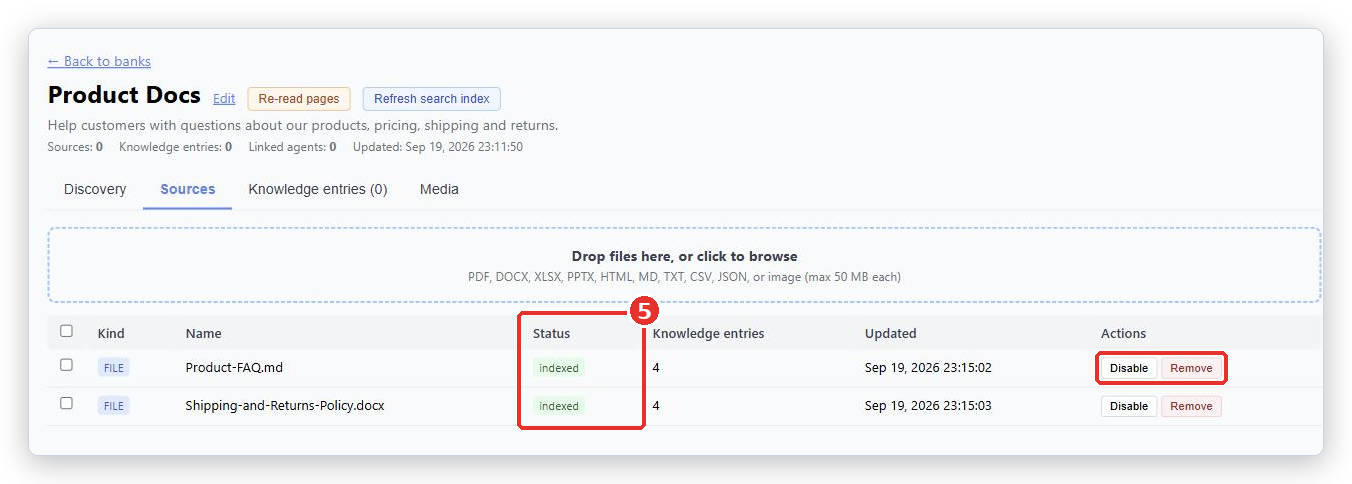
- Watch the Status column on each new row. When it says
indexed, the bot can use that file.
What the Status column means
| Status | What it means |
|---|---|
pending |
Queued. Nothing has happened yet. |
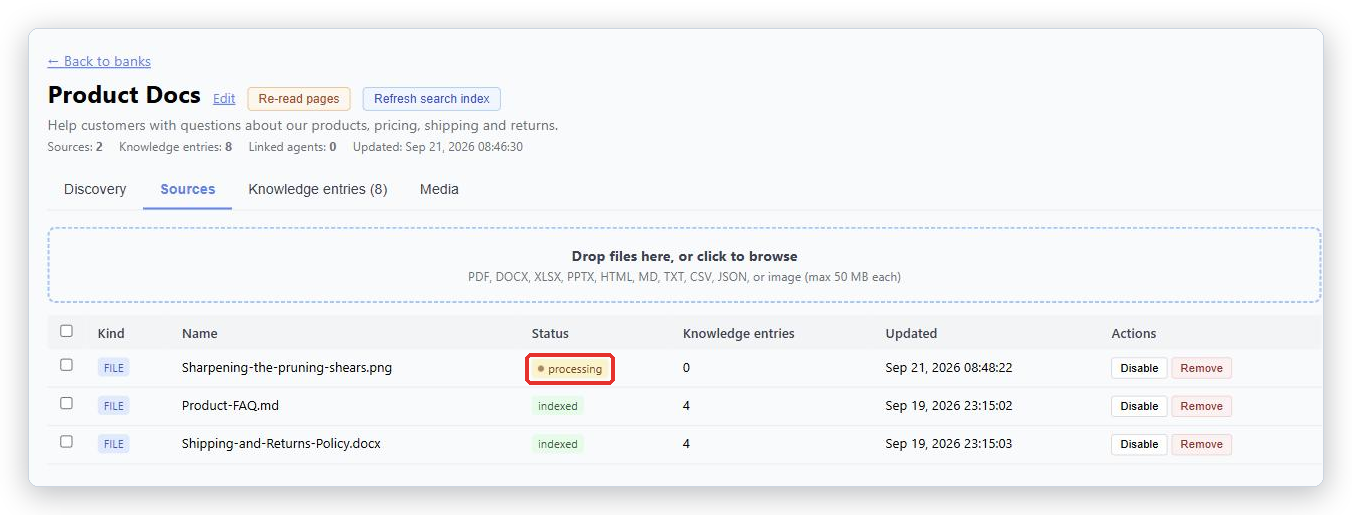
processing |
Being read and cut into Knowledge entries. This takes 30 to 120 seconds for longer documents. |
indexed |
Done. The bot can now find and use this content. |
failed |
Something went wrong. Remove the file and try again, or try a different format. |
The page checks for you every few seconds while anything is still processing, so you do not need to refresh. The Knowledge entries number on each row rises as it finishes. The four numbers at the top of the bank page update when you reload the page.
The one thing to know about uploaded files
Important. BotableX does not keep your original file after reading the text out of it. That means an uploaded file cannot be re-read later. If the document changes, remove the old file and upload the new version.
If you select a mix of files and web pages and press Re-index selected, the files are skipped and the screen tells you how many.
Managing files after upload
Each row on the Sources tab has two buttons.
- Disable stops the bot using that file without deleting it. Enable puts it back.
- Remove deletes the file and every Knowledge entry it produced. This cannot be undone.
- Tick the box at the start of several rows to get a toolbar with Re-index selected, Delete selected and Clear.
What happens next
Once at least one file shows indexed, open the Knowledge entries tab and read a few. That is exactly what the bot will see. If they read badly, the document is probably badly laid out, and the fix is a cleaner document.
Then make sure the bank is ticked on your Agent under Connected Knowledge Banks. A file in a bank that no Agent reads helps nobody.
Common problems
| Problem | What to do |
|---|---|
| Skipped: |
That format cannot be read. Convert it to PDF, DOCX or TXT first. |
| Skipped: |
Split the document into smaller files, or save it at a lower quality. |
Status stays processing for a long time |
Long documents take up to two minutes. If it is still going after several minutes, contact BotableX support. |
Status is failed |
The file could not be read. A scanned PDF with no text layer is the usual cause. Run it through text recognition first, or upload the text version. |
| Lost contact with the server while checking source status. Reload to check progress. | The page gave up checking. Reload the page. Your upload is not affected. |
| Sources: 0 at the top although my files are listed | A known display issue: that number does not count uploaded files yet. The Sources tab is the truth. |
The file is indexed but the bot still does not know it |
Check the bank is ticked on the Agent under Connected Knowledge Banks. |
Tip from the BotableX team. One topic per file works much better than one giant manual. A ten-page “Shipping and returns” document gives clean, findable Knowledge entries. A 300-page everything-manual gives entries that start mid-sentence.