CRM
How to set CRM owners and conversation records
Two more parts of CRM Property Mapping: who owns a ticket in HubSpot, and how each conversation appears on the customer record.
Updated October 4, 2026. Applies to the BotableX Staff Portal. For tenant admins.
Two more parts of CRM Property Mapping: who owns a ticket in HubSpot, and how each conversation appears on the customer record.
Set these up after your field mapping, or tickets arrive in HubSpot with nobody attached to them.
Before you start
- You need the Settings permission (
config.edit). - Your CRM must be connected and the schema refreshed.
- You need the
crm.objects.owners.readpermission on your HubSpot private app, or the owner list will be empty.
Part 1: so how do you map your staff to HubSpot owners?
When a person on your team handles a conversation, BotableX can give the HubSpot ticket to that same person. To do that it needs to know which of your staff is which HubSpot user.
- In the menu on the left, click Settings, click the Property Mapping tab, and scroll to Owners.
- In Staff email to map, type the email address your team member signs in to BotableX with.
- In Portal owner, pick the matching HubSpot user.
- Click Add owner mapping.
- Set Owner representing the bot. This is the HubSpot user that gets tickets the bot handled on its own. You can leave it as None - leave bot tickets unassigned.
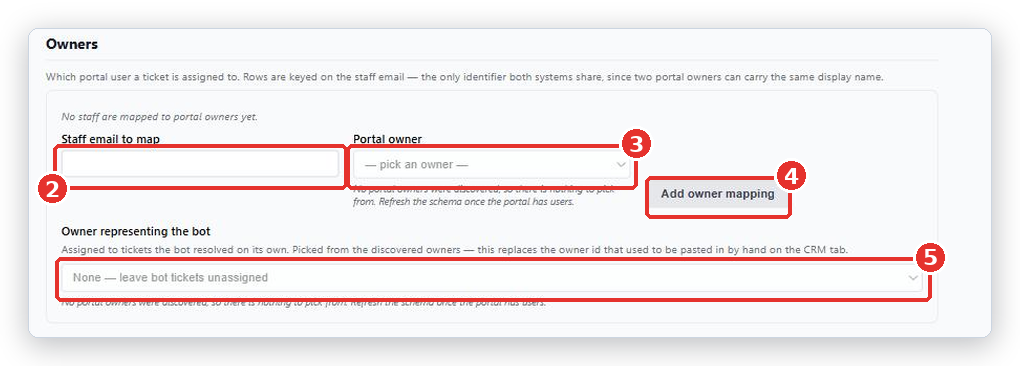
- Repeat for everyone on your support team, then click Save mapping.
Important. An unmapped staff member does not cause an error. Their tickets quietly go to the bot owner instead, and it looks exactly like it is working. Map everyone.
Part 2: Conversation record per channel
This decides what kind of HubSpot record each conversation becomes, depending on which Channel it came in on. Sensible defaults are already set, and most people never change them.
| Option | When to use it |
|---|---|
| Note | A plain note on the record. The default for website chat, because HubSpot has no chat record type. |
| Appears as an email on the record. The default for Email Channels. | |
| Communication (WhatsApp / SMS) | The default for WhatsApp, SMS and messenger. |
| Call | The default for phone conversations. |
Part 3: Conversation properties
This decides which ticket fields your team can see, and change, from inside the Agent Console while they are talking to a customer.
- Scroll to Conversation properties.
- In Ticket property, pick a property and click Add property.
- Use the ↑ and ↓ buttons to put them in a sensible order, and ✕ to remove one.
- Tick Editable only for properties you are happy for your team to change.
- Click Save mapping.
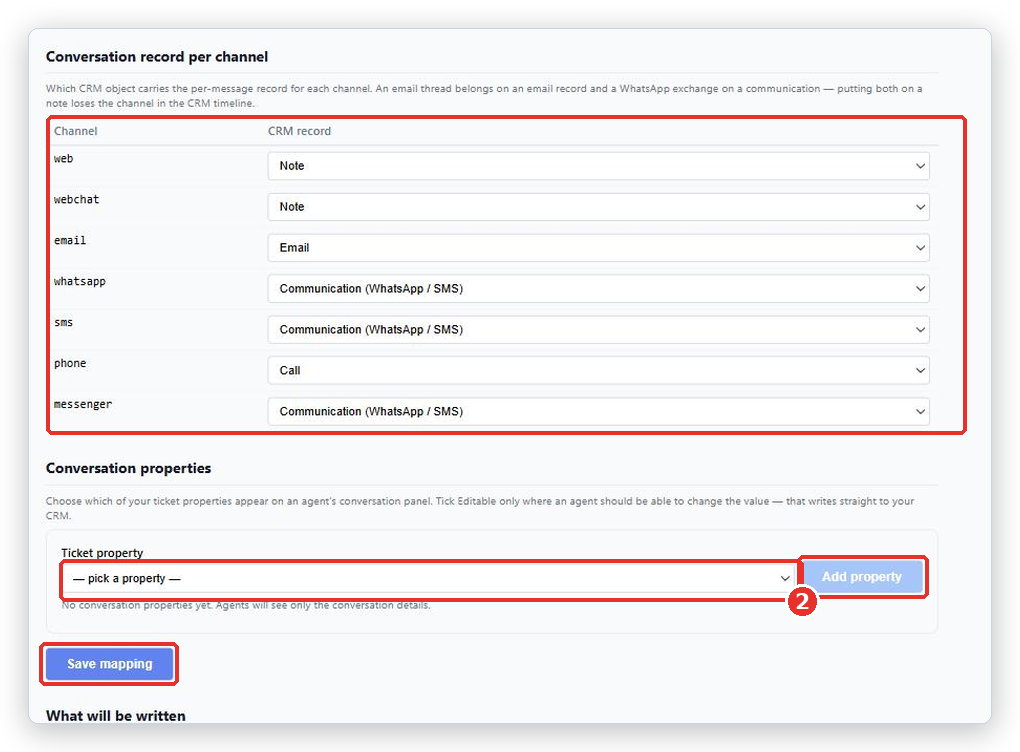
Important. A property marked Editable is written to your live HubSpot the moment an agent changes it. There is no review step. New properties are added as not editable, which is the safe default.
If the Editable tick box is grayed out, that HubSpot property is read-only or calculated, so it cannot be changed from anywhere.
Common problems
| Problem | What to do |
|---|---|
| No portal owners were discovered, so there is nothing to pick from. Refresh the schema once the portal has users. | Your private app is missing crm.objects.owners.read, or you are still on the Stub provider. Add the permission in HubSpot, then press Refresh Schema on the CRM tab. |
| Enter a staff email address first. | Type the email before picking an owner. |
| That email is already mapped. | This person already has a mapping. Edit or delete the existing row. |
| Owner is deactivated or Assigned owner no longer exists | That HubSpot user was switched off or removed. Map the staff member to someone else. |
| Tickets in HubSpot have no owner at all | Either that staff member is not mapped, or the ticket was created part-way through the conversation rather than at the end. See the note below. |
| Conversations only appear in HubSpot when they close | That is the default. Ask BotableX support about turning on per-message conversation records. |
Tip from the BotableX team. Map the owners on the same day you connect HubSpot, while you still have the list of who is on the support team in front of you. Every unmapped person after that is a ticket quietly landing on the bot.