CRM
How to connect HubSpot as your CRM
Connecting your CRM lets BotableX recognize a customer before the bot answers, and write the conversation back to HubSpot as a ticket when it closes.
Updated October 4, 2026. Applies to the BotableX Staff Portal. For tenant admins.
Connecting your CRM lets BotableX recognize a customer before the bot answers, and write the conversation back to HubSpot as a ticket when it closes.
This article shows how to get a token from HubSpot, connect it, and check it worked. HubSpot is the only real CRM BotableX supports today.
Before you start
- You need the Settings permission (
config.edit). - You need an administrator on your HubSpot account who can create a private app.
- Decide now whether your customers are private people, people at companies, or both. This matters for the companies article.
Important. Once exporting is on, every closed conversation writes a contact and a ticket into your real HubSpot. Connect a HubSpot test account first if you have one.
Step 1: make a token in HubSpot
- In HubSpot, go to Settings (the gear icon) → Integrations → Private Apps.
- Click Create a private app.
- Give it a name such as
BotableX. - On the Scopes tab, tick the permissions listed below.
- Create the app and copy the access token. It starts with
pat-.
You must tick these:
crm.objects.contacts.readandcrm.objects.contacts.writecrm.objects.tickets.readandcrm.objects.tickets.writecrm.schemas.contacts.readcrm.schemas.tickets.read
Strongly recommended as well:
crm.objects.owners.readso tickets can be given to the right personcrm.objects.companies.read,crm.objects.companies.writeandcrm.schemas.companies.readif you work with companies- The notes and engagement permissions, so conversations appear on the record
Important. Adding a permission later does not change the token, but BotableX will not see the new permission until you refresh the schema. If you add permissions, come back and press Refresh Schema.
Step 2: so how do you connect it in BotableX?
- In the menu on the left, click Settings, then click the CRM tab.
- In CRM Provider, choose HubSpot. The token fields appear.
- Paste your token into Private App Token.
- Fill in Bot Owner ID (for bot-resolved tickets) if you want tickets the bot handled alone to be given to a particular HubSpot user. You can leave it blank.
- Scroll down and click Save CRM Settings.
- Scroll back up and click Test Connection.
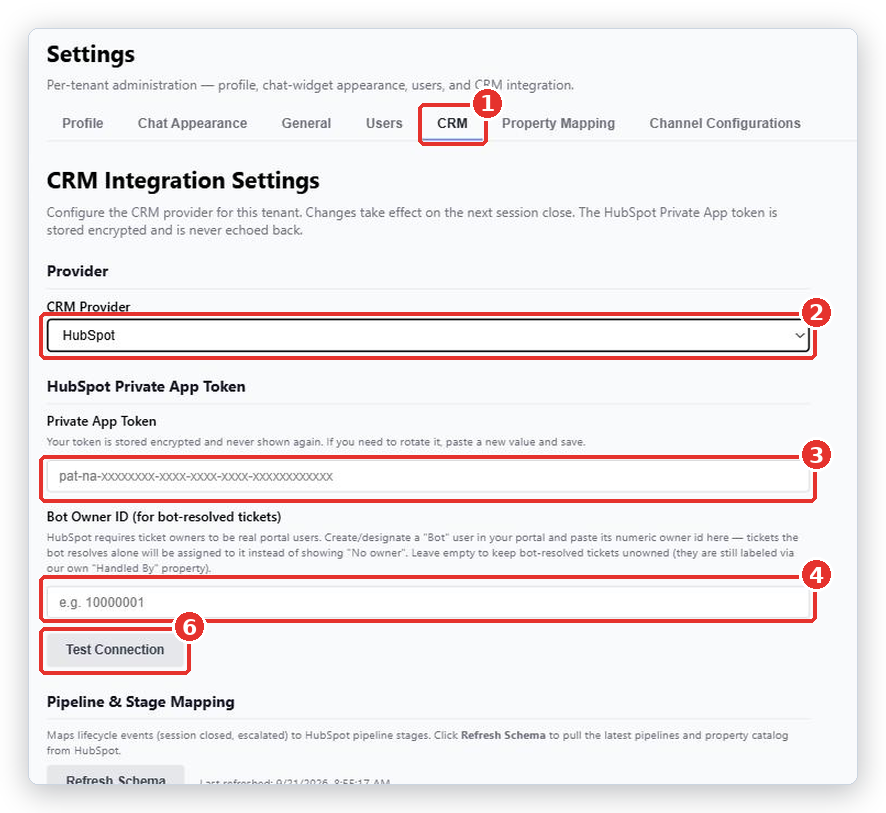
A successful test shows Connected - Portal ID: … | Scopes: …. Check the portal id is the HubSpot account you meant.
Important. The test result is shown once and disappears when you reload. There is no permanent “Connected” badge on this screen. If you want to be sure later, press Test Connection again.
Step 3: load your HubSpot fields and pick the pipeline stages
- Still on the CRM tab, find Pipeline & Stage Mapping and click Refresh Schema. Wait for Last refreshed to update.
- For each of the four rows (New / open stage, Closed stage, Session closed, Session escalated) pick a pipeline, then a stage.
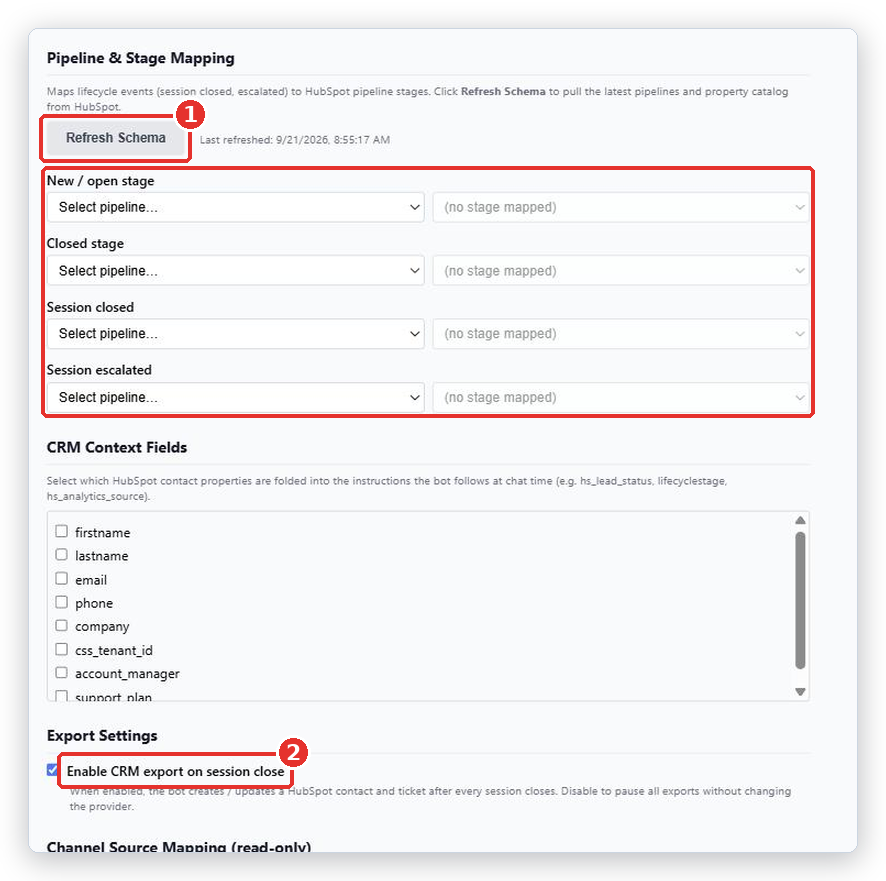
Refresh Schema reads the real property names, pipelines and stages out of your HubSpot account. Everything else you set up is chosen from that list, so nothing is ever typed by hand and mistyped. A brand new account must have this pressed once, by hand.
If the pipeline list will not load, the stage fields are locked and you cannot type a stage by hand. That is on purpose: an id copied from another HubSpot account looks fine here and is rejected by HubSpot on every single write.
Step 4: turn on exporting
- Find Export Settings.
- Tick Enable CRM export on session close.
- Click Save CRM Settings.
From then on, when a conversation closes BotableX creates or updates a HubSpot contact and a ticket for it. Untick this at any time to pause all exporting without changing anything else.
About the Stub option
The provider list has one other choice, Stub (testing / no CRM). It pretends everything worked: exports report success and Test Connection passes, but nothing is sent anywhere. New accounts start on Stub. If you see the note Simulated provider under the provider box, you are on Stub and no real CRM is being written to.
What happens next
Go to the Property Mapping tab and decide which BotableX field lands in which HubSpot property. Nothing is mapped until you do. See the next article.
Common problems
| Problem | What to do |
|---|---|
| We couldn’t connect. Please check your settings and try again. | The token is wrong, expired, or from a different HubSpot account. Make a fresh private app token and paste it again. |
| We couldn’t test the connection right now. Please try again in a moment. | The request itself failed. Try again. If it keeps happening, contact BotableX support. |
| Schema refresh failed. Verify the HubSpot token is set and valid. | Save a valid token first, then press Refresh Schema again. |
| The scopes list is missing something I ticked in HubSpot | Press Refresh Schema. Permissions added after the token was made are not picked up until you do. |
| I pasted the token but the field looks empty afterwards | That is correct. The token is stored encrypted and never shown again. To change it, paste a new one and save. |
| Stage dropdowns show a pipeline I do not have | You are probably still on Stub, which shows a made-up Support Pipeline for testing. Switch to HubSpot, save, and press Refresh Schema. |
| Stage dropdowns are locked and read-only | Your pipelines could not be read. Check the connection, press Refresh Schema, then reload the page. |
Tip from the BotableX team. Keep the Test Connection result on your screen and read the Scopes list before you leave the page. If
owners.readis missing, tickets will never get an owner, and that is much harder to notice later than now.