CRM
How to work with companies in the CRM
If you sell to businesses, the same email address can belong to different people at different companies. BotableX can look a customer up within their company, so the right record is found.
Updated October 4, 2026. Applies to the BotableX Staff Portal. For tenant admins.
If you sell to businesses, the same email address can belong to different people at different companies. BotableX can look a customer up within their company, so the right record is found.
This article explains the customer model setting and the two steps you must do together.
Before you start
- You need the Settings permission (
config.edit). - Your CRM must be connected and the schema refreshed.
- Your HubSpot private app needs
crm.objects.companies.readandcrm.schemas.companies.read. - You need a HubSpot property on the company record that holds your own company id, and your website or chat must be able to supply that id.
Choosing your customer model
There is one setting that changes everything here.
| Value | What it means |
|---|---|
private |
Your customers are private people. No company is ever looked up. This is the default. |
companies |
Your customers are people at companies. Every lookup is done within a company. |
both |
A mix of the two. |
You can see the current value at the top of the Property Mapping tab, under Customer model. It is read-only there; the Open Tenant Settings button takes you to where it is changed.

So how do you change the customer model?
- In the menu on the left, click Settings, then click the General tab.
- Scroll to the bottom. Find the section headed Crm and the field Customer Model.
- Type exactly one of
private,companiesorboth. Nothing else is accepted. - Click Save next to the field.
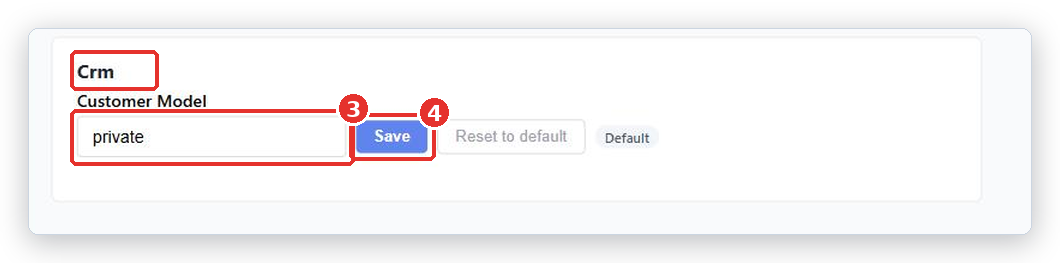
Important. This is a plain text box, not a dropdown, and it has no description on screen. Type the word exactly, in lower case. Anything else is rejected when you save.
The two steps you must do together
This is the part that catches people out. Setting the customer model to companies on its own does nothing useful. You must also tell BotableX which HubSpot property holds your company id.
- Set Customer Model to
companieson the General tab, as above. - Go to Settings → Property Mapping. The Company identity section, which said the model was private, now shows fields.
- In Your own id property, pick the HubSpot company property that holds your own company id.
- In Name property, pick the company name property.
- In Context properties, pick any extra company details you want the bot and your team to see. These are read only; nothing is ever written back.
- Click Save mapping.
Important. If you set
companieswithout mapping the company id property, BotableX does not fall back to looking people up by email. It resolves nobody at all. Do both steps in one sitting.
What changes once it is on
- A customer is found within their company. Two people with the same email at different companies are two different contacts, and one company’s contact can never be shown to another company.
- Your team sees a Company details card in the Agent Console, with a badge saying From CRM company record when it is a real HubSpot company rather than a typed-in company name.
- The company details you chose are given to the bot, so it can use them when answering.
Things BotableX will not do
- It never creates a company. If the company is not in HubSpot, nothing is created and nobody is resolved.
- If two companies match the same id, it resolves nothing rather than guessing. That is deliberate.
- It does not merge companies or tidy your HubSpot data.
Common problems
| Problem | What to do |
|---|---|
| The customer model is set to private individuals, so no company is ever resolved and this section does not apply. | Set Customer Model to companies or both on the General tab first. |
Nobody is resolved at all after switching to companies |
You have not mapped Your own id property under Company identity. Do that now. |
| Some customers resolve and some do not | Those customers’ company ids are not reaching BotableX, or the company is not in HubSpot. Check what your website sends. |
| The company card in the Agent Console is empty | Add some Context properties under Company identity. |
| The wrong company is found | Two HubSpot companies share the same id value. Fix the duplicate in HubSpot. |
| Saving Customer Model fails | The value must be exactly private, companies or both, in lower case, with no spaces. |
Tip from the BotableX team. If you are not sure whether you need companies, you do not. Stay on
private. Switch only when you have two real customers with the same email at two different companies, because that is the only problem this setting solves.