Channels
How to turn a Channel on or off
Turning a Channel off is how you stop it receiving messages and sending replies, without deleting anything. It is the quickest way to make a bot go quiet on one Channel.
Updated October 4, 2026. Applies to the BotableX Staff Portal. For tenant admins.
Turning a Channel off is how you stop it receiving messages and sending replies, without deleting anything. It is the quickest way to make a bot go quiet on one Channel.
This article shows where the button is, how fast it takes effect, and what happens to messages that are already on their way.
Before you start
- You need the Bots permission (
bots.manage). - Turning a Channel off deletes nothing. Your Channel, its settings and its history all stay.
So how do you turn a Channel off?
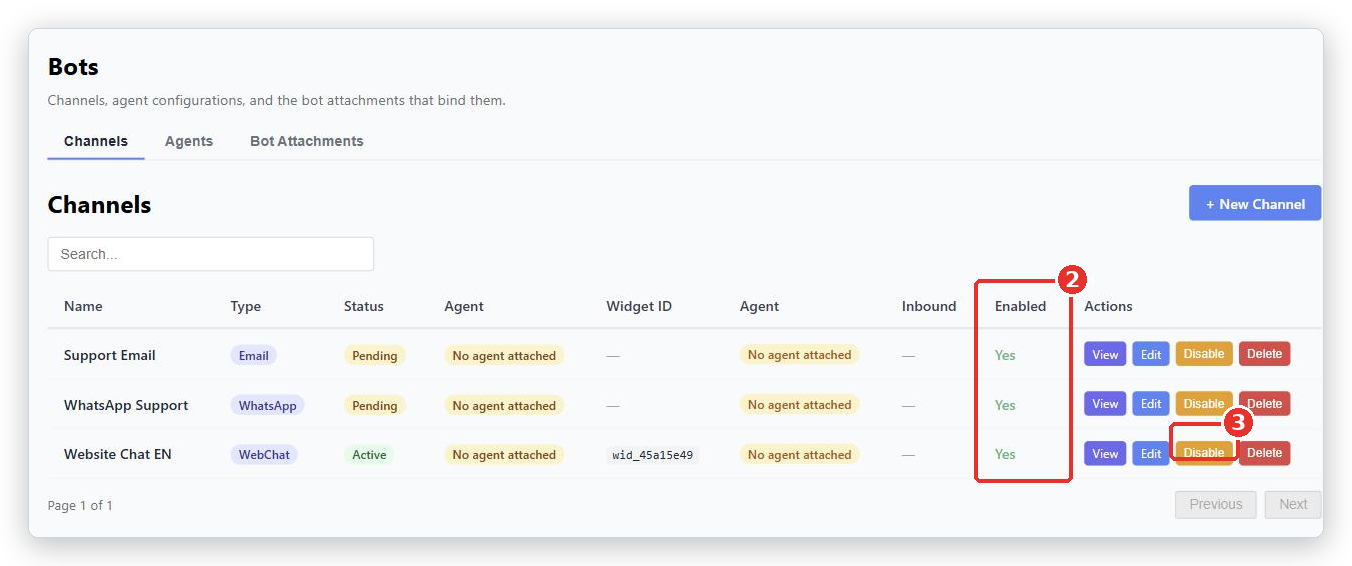
- In the menu on the left, open Bot Management, click Bots, and pick the Channels tab.
- Find the Channel in the list. The Enabled column shows
YesorNo. - In the Actions column, click Disable.
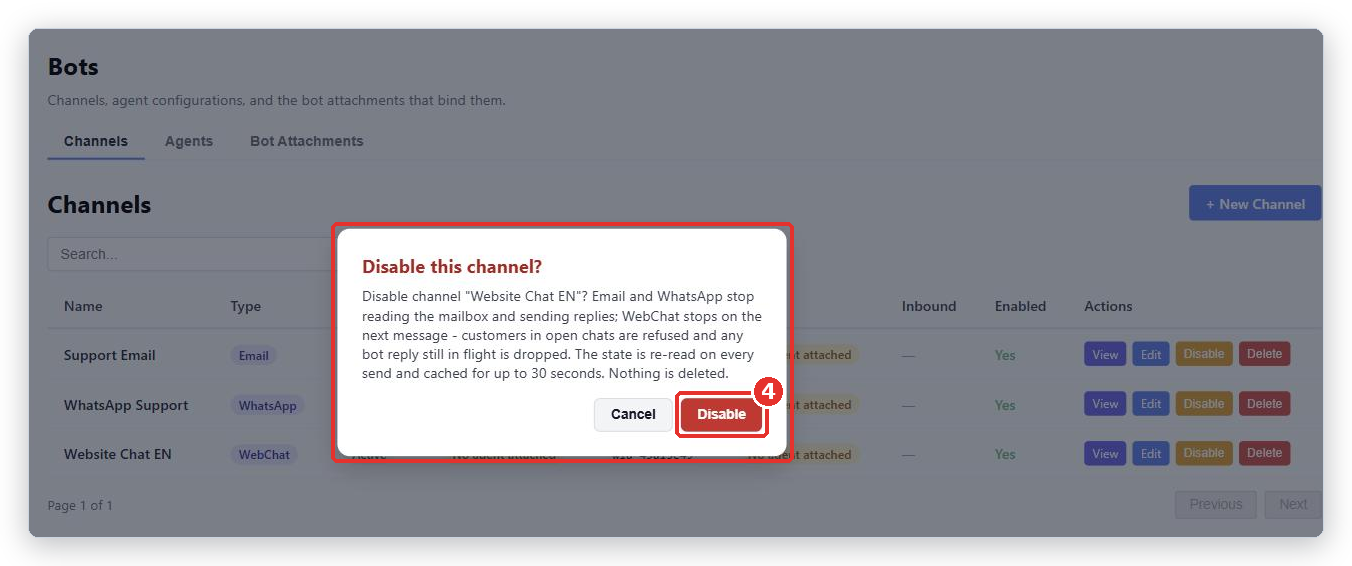
- A box headed Disable this channel? appears and explains what will stop. Read it, then click Disable again to confirm.
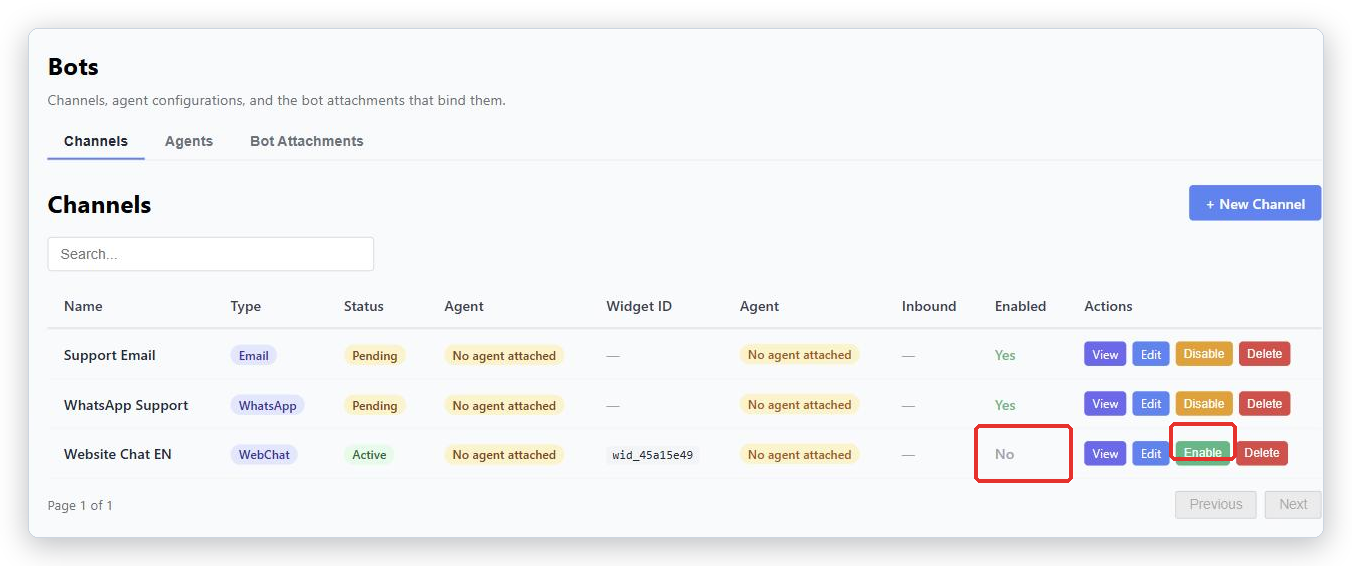
Back in the list, Enabled now says No and the button in the Actions column has changed to Enable. There is no on/off switch; it is one button whose name changes.
What actually stops
This is what the confirmation box tells you, in plain words.
| Channel type | What happens when you disable it |
|---|---|
| BotableX stops reading the mailbox and stops sending replies. | |
| The same: it stops reading and stops sending. | |
| WebChat | It stops on the next message. Customers in an open chat are refused. Any bot reply still on its way is dropped. |
The state is checked again on every send and remembered for up to 30 seconds. So allow half a minute for a change to take effect everywhere.
Turning it back on
- Click Enable in the Actions column.
- A box headed Enable this channel? appears. It reminds you to check which bot is attached. Click Enable to confirm.
The Channel starts receiving and replying again on the next message, again within about 30 seconds.
Important. Before you enable a Channel again, check which Agent is attached to it. Enabling puts whatever is attached straight back in front of your customers.
Other ways to stop things
Turning off a Channel is the narrowest tool and usually the right one. There are others.
- To stop only the automatic sending of email but keep the bot drafting, set the Email Channel to Consultation only - a person always sends under Who sends the reply.
- To stop one Agent answering everywhere, deactivate its Bot Attachment under Bots → Bot Attachments.
- To stop everything for your whole account at once, contact BotableX support. There is an emergency stop that works at account level, and it is not something you operate from this screen.
Common problems
| Problem | What to do |
|---|---|
| Could not change the channel state | Something went wrong saving. Refresh the page and try again. If it keeps failing, contact BotableX support. |
| I disabled it but a reply still went out | Wait 30 seconds. A reply already being sent when you pressed the button can still land. |
| Customers get an error in the chat window | That is expected while a WebChat Channel is disabled. Enable it again, or tell customers where else to reach you. |
| I want to stop it right now and 30 seconds is too long | Contact BotableX support and say you need an outbound halt. That is a faster and wider lever than this screen. |
Tip from the BotableX team. If you only want to stop the bot but keep the Channel open for your team, do not disable the Channel. Deactivate the Bot Attachment instead. Customers can still write in, and your people answer from the Agent Console.