Agent Console
How to set your status and see who is online
Your status tells BotableX whether it may route conversations to you. Available means yes. Busy and Away mean no. The Team page shows the status of everyone on your team.
Updated October 4, 2026. Applies to the BotableX Agent Console. For support agents.
Your status tells BotableX whether it may route conversations to you. Available means yes. Busy and Away mean no. The Team page shows the status of everyone on your team.
This article shows how to change your status, what each one does, how to read the Team page, and what is on your User settings page.
Before you start
- Your status only changes while the top bar says Live. If you change it while the console is reconnecting, the change does not stick; try again once it says Live.
- Your status is kept on the server. It survives a page refresh and a new sign-in.
So how do you change your status?
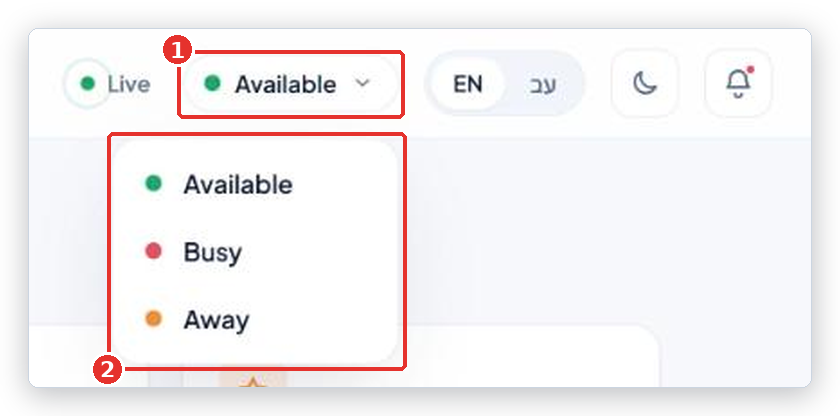
- In the top bar, click the colored dot with your current status (Available, Busy or Away).
- Pick the new status from the list.
| Problem | What to do |
|---|---|
| Available | You are online and may receive conversations. Use this while you work. |
| Busy | You are online but full. New conversations are not routed to you; the ones you own stay yours. |
| Away | You are not at your desk. To the team you show as offline. Nothing new is routed to you. |
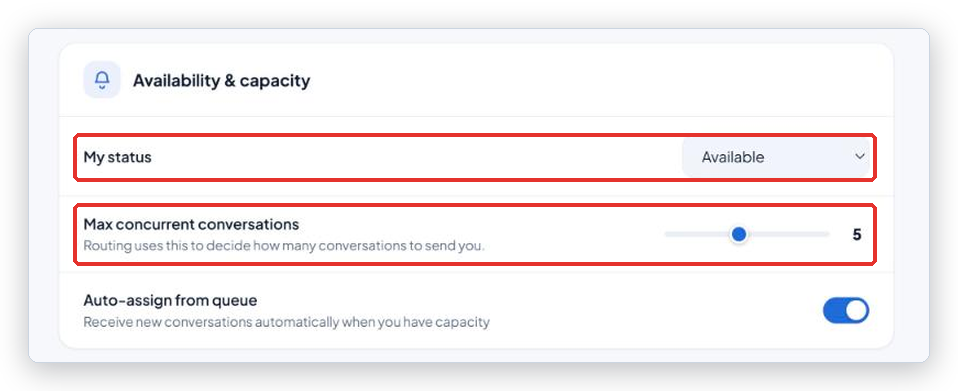
You can also set it under User settings → Availability & capacity → My status. It is the same setting.
Seeing who is online
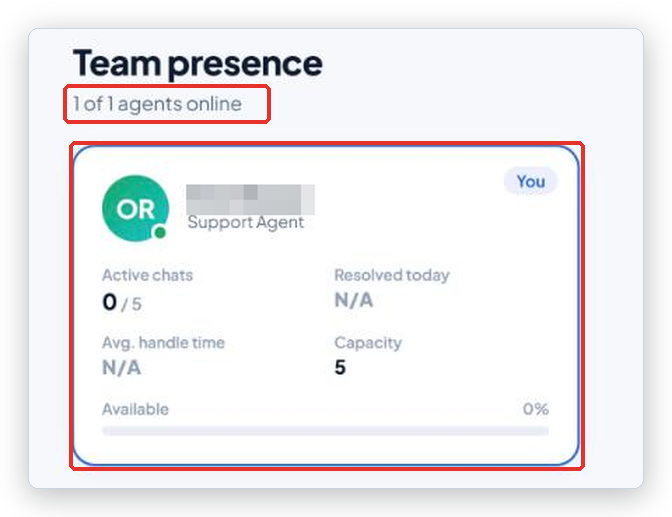
Click Team in the menu rail. The page is called Team presence and the line under the title says how many of your agents are online, for example 3 of 5 agents online. Each teammate has a card with a status word: Available, Busy or Offline. Your own card has a You badge.
Each card also shows Active chats, Resolved today, Avg. handle time and Capacity. Today only your own Active chats and Capacity show real numbers; the other figures read N/A for everyone. They are on the way.
Your User settings page
Click your name at the bottom of the menu rail to open User settings. The cards are:
- Profile: your name and email. Read-only; your administrator changes them in the Staff Portal.
- Availability & capacity: My status, and Max concurrent conversations, a slider from 1 to 10. Routing uses it to decide how many conversations to send you at once. Changing the slider needs Save changes at the bottom, and only an administrator account can save it; a regular agent sees Save failed - try again. Ask your administrator to set your capacity.
- Notifications: switches for desktop notifications and sounds. These do not do anything yet, so leave them.
- Appearance: Theme (Light or Dark) and Language (English or the second language). These save at once.
- Quick replies: a list of saved answers. It is a preview of a coming feature; you cannot use them in a chat yet.
- Security: Change password reads Coming soon. Sign out signs you out at once.
Common problems
| Problem | What to do |
|---|---|
| My status jumps back to what it was | The console was not connected when you changed it. Wait for Live in the top bar and change it again. |
| I set Away but I still get conversations | Conversations you already own stay with you. Away only stops new ones. |
| Save failed - try again on the settings page | The Max concurrent conversations slider can only be saved by an administrator account. Everything else on the page saves by itself; you can ignore the button. |
| My teammates show as a code, not a name | Known display issue on the Team page. The status is still right. |
| Couldn’t load the team roster. | Connection problem. Check the top bar says Live and refresh. |
| The Team page says No agents online right now. while I am Available | Known issue. Pick Busy and then Available again in the top bar; you reappear. Tell your administrator if it keeps happening. |
Tip from the BotableX team. Set Busy when you are deep in one hard conversation. It stops the router from adding to your load without hiding you from the team the way Away does.