Agent Console
Conversation details: subject, state, CRM and the contact page
On the right of every open conversation is a panel called Conversation. It shows who owns the conversation, which Channel it came in on, its Conversation state, and, if your organization connected a CRM, the ticket...
Updated October 4, 2026. Applies to the BotableX Agent Console. For support agents.
On the right of every open conversation is a panel called Conversation. It shows who owns the conversation, which Channel it came in on, its Conversation state, and, if your organization connected a CRM, the ticket fields and the customer’s record.
This article shows how to rename a conversation, move it to another state, edit CRM fields, and open the customer’s contact page.
Before you start
- The panel needs a wide window. On a screen narrower than about 1180 pixels it is hidden; the customer’s name in the conversation header still opens the contact page.
- The CRM sections only appear when your administrator connected a CRM and mapped fields in the Staff Portal. Without that, you see Subject and the details rows only.
- Changes to CRM fields are written to your CRM at once. There is no undo.
What the panel shows
- Subject: the name of the conversation. For email it is the subject line; for chat it is the customer’s name or the start of their first message.
- Status: the state badge (AI handling, Bot needs help, You took over, Closed).
- Owner: Unassigned, You, or a teammate’s name.
- Channel, Opened, Last message, and Closed at once it is closed.
- Conversation state: a dropdown of your organization’s states. This is the folder the conversation sits in.
- CRM category, CRM properties and Contact: only with a connected CRM.
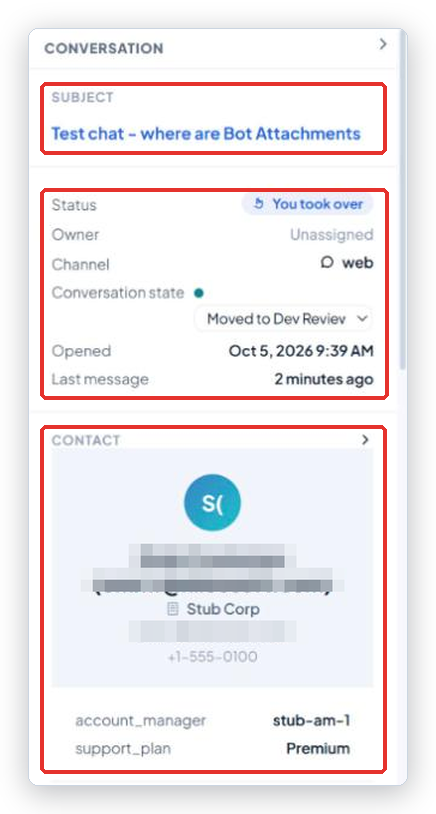
The small arrow at the top (Collapse panel) folds the panel into a thin strip to give the chat more room. Click Show conversation details on the strip to bring it back.
So how do you rename a conversation?
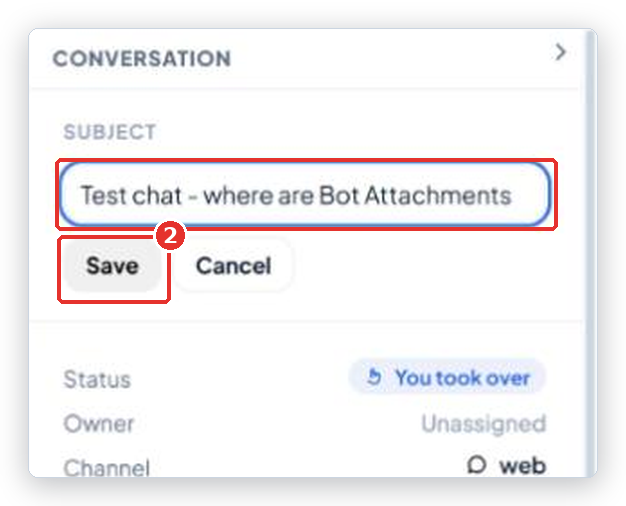
- In the panel, click the Subject text. It turns into a box with the current name in gray. Type the new name over it.
- Type the new name and press Enter, or click Save. Press Escape or click Cancel to give up.
- To go back to the automatic name, clear the box and save.
So how do you move a conversation to another state?
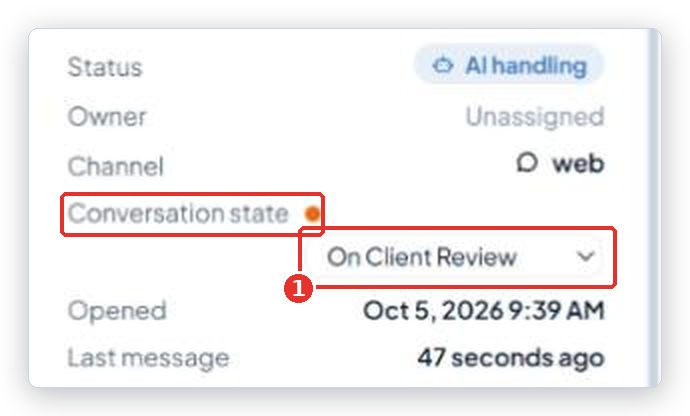
- In the panel, open the Conversation state dropdown.
- Pick the state. The row moves to that folder in the Inbox at once.
Read the hint on the control before you do this: Setting this by hand stops the bot re-categorising this conversation automatically. Once you pick a state, the bot no longer sorts this conversation by itself. There is no “clear” option, so pick it only when you mean it.
Working with CRM fields
- CRM category: a row of chips. Click one to set it. If only one category is allowed, clicking the selected chip again clears it. Until the customer has a ticket in your CRM, the section says No CRM ticket for this conversation yet.
- CRM properties: click the heading to open it. Each row is a ticket field your administrator mapped. Some are read-only; the editable ones save when you press Enter or click away. Escape puts the old value back. A dropdown field offers ** - none - ** to clear it.
- Contact: click the heading to open it. It shows the customer’s name, company, email and phone from your CRM, plus any contact fields your administrator mapped. A small CRM chip next to the company means it came from a real company record. Web chat visitors who never identified themselves show Anonymous visitor.
The contact page
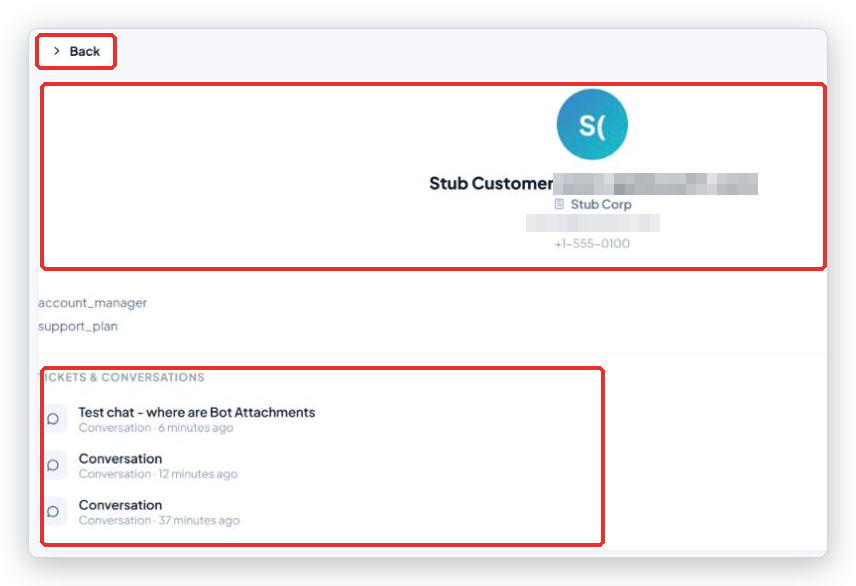
Click View contact at the bottom of the Contact section, or the customer’s name in the conversation header. The contact page shows the same summary, then Tickets & conversations: every conversation and every CRM ticket for this customer, newest first. Conversation rows open the conversation; ticket rows are read-only. Click Load more to see older ones, and Back to return.
Common problems
| Problem | What to do |
|---|---|
| I do not see the panel at all | Your window is too narrow. Make the browser wider, or use the customer’s name in the header to reach the contact page. |
| The subject wasn’t saved. Nothing was changed. | Connection problem. Check the top bar says Live and try again. |
| The conversation state wasn’t changed. | Same as above. The dropdown shows the old value again on purpose. |
| The CRM did not accept that change. Nothing was saved. or The change wasn’t saved to your CRM. | Your CRM rejected the value, for example a field it does not allow. Tell your administrator which field. |
| Your CRM couldn’t be read, so these values are unknown. | The CRM connection is down. The values are not empty, they are unknown. Try later. |
| No CRM profile for this customer. | The customer is not in your CRM yet. The bot creates the record when your organization set that up; see the CRM articles. |
| CRM category is missing | Your administrator has not mapped a category field. Nothing is wrong. |
Tip from the BotableX team. Rename long chats with a subject that says the problem, not the person:
Refund for order 4471beatsAnonymous - hi i need help. Your teammates and the bot’s memory both read it.