Agent Console
How to sign in to the Agent Console and find your way around
The Agent Console is the screen your support team works in all day. It shows every live conversation, lets a person step in when the bot needs help, and lets you review the bot's email replies before they go out.
Updated October 4, 2026. Applies to the BotableX Agent Console. For support agents.
The Agent Console is the screen your support team works in all day. It shows every live conversation, lets a person step in when the bot needs help, and lets you review the bot’s email replies before they go out.
This article shows how to sign in, how to switch the screen to English, and what each part of the screen is for.
Before you start
- You need an Agent Console user account. Your BotableX administrator creates it in the Staff Portal under Settings → Users.
- You need your Company code. It is the short code of your organization, the same for everyone on your team. Your administrator can tell you what it is.
- The Agent Console lives at
https://console.botablex.io. The Staff Portal athttps://app.botablex.iois a different screen, for setting things up. Agents normally only need the console.
So how do you sign in?
- Open
https://console.botablex.ioin your browser. - In Company code, type your organization’s code.
- In Username and Password, type your own login details.
- Click Sign In.
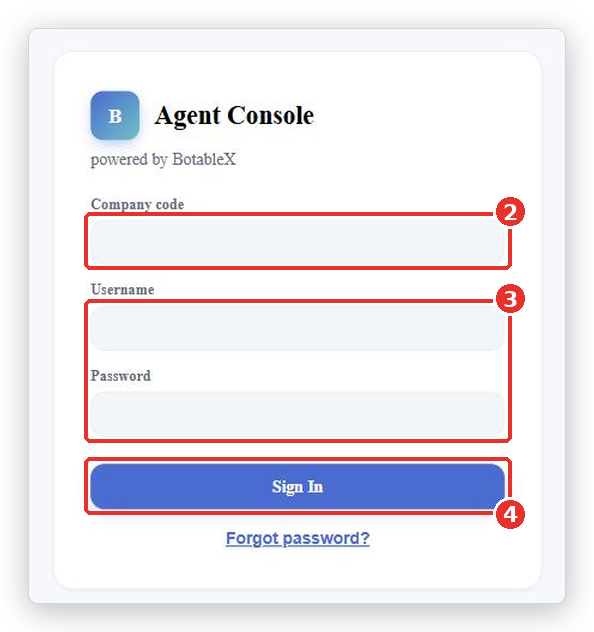
If you forgot your password, click Forgot password? under the button. Type your Company code and your email, and click Send reset link. If an account exists for that email, a link arrives in your inbox. The screen says the same thing whether or not the account exists, on purpose.
First thing: switch the screen to English
The console can open in another language the first time you use it, with the layout flipped right to left. To work in English:
- Look at the bar across the top of the screen. On the right there is a two-button language switch. EN is English; the other button is the second language.
- Click EN. The whole screen switches to English and the layout flips to left to right.

You can also change it later under your settings, in the Appearance card, with the English button. The same card has a Theme setting with Light and Dark.
The parts of the screen
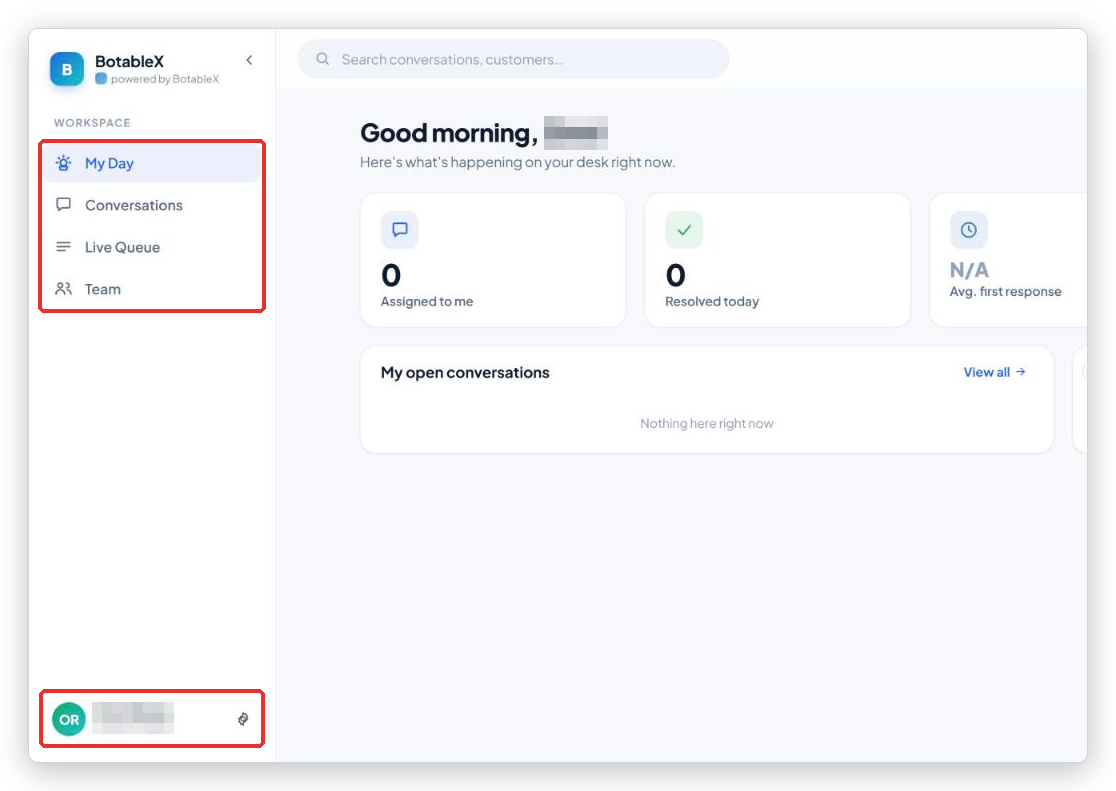
After you sign in you land on My Day. The screen has three parts: the menu rail on the left, the bar across the top, and the page in the middle.
The menu rail
- My Day: your home page. It shows how many conversations are assigned to you, how many you resolved today, your open conversations, and a live feed of what is happening.
- Conversations: your inbox. Every live conversation, sorted into folders. A number on this item counts the open conversations; an orange number means the bot is asking for help. A second small badge counts email replies that are waiting for your review.
- Live Queue: conversations that need a person and have not been claimed by anyone yet.
- Team: who on your team is online right now.
- At the bottom of the rail is your own name with the role Support Agent. Click it to open your User settings. This is also where you sign out.
The small arrow at the top of the rail (Collapse menu) shrinks it to icons only. Click it again (Expand menu) to bring the names back.
The top bar
- Live: the connection light. Live means the console is connected and messages arrive as they happen. Connecting…, Reconnecting… or Offline mean it is not. The console keeps trying by itself; you do not need to refresh.
- Availability: a colored dot with Available, Busy or Away. Click it to change your status. See the article “How to set your status and see who is online”.
- EN and the button next to it: the language switch.
- The sun or moon icon switches between the light and dark theme.
The search box and the bell icon in the top bar do not do anything yet. They are placeholders for features that are on the way, so do not worry if nothing happens when you click them.
Signing out
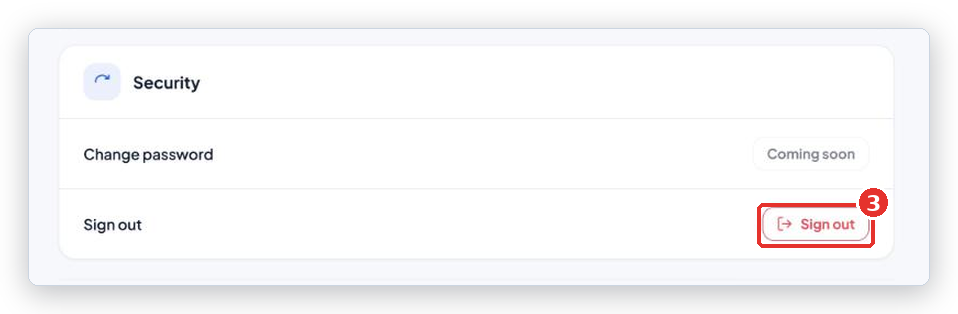
- Click your name at the bottom of the menu rail.
- On the User settings page, scroll to the Security card.
- Click Sign out. You are signed out at once, with no “are you sure?” box.
Common problems
| Problem | What to do |
|---|---|
| Incorrect username or password. Please try again. | Check the Company code too. A right password with the wrong company code gives this same message. |
| Account locked or suspended. Contact your administrator. | Your account or your organization has been suspended. Only your administrator can lift it. |
| Cannot reach the server. Try again later. | Your internet connection or the BotableX service is down. Try again in a minute. |
| The screen is in another language and reads right to left | That is the default on some setups. Click EN in the top bar. |
| The top bar says Reconnecting… for a long time | The console reconnects on its own and catches up on anything it missed. If it stays like this for more than a few minutes, refresh the page. |
| I cannot find a Logout button | Click your name at the bottom of the rail, then Sign out in the Security card. |
Tip from the BotableX team. Bookmark
https://console.botablex.io/conversations. If you open a link to a conversation before signing in, the console takes you to that conversation right after you sign in.